CI/CD Jobs
DETAILS: Tier: Free, Premium, Ultimate Offering: GitLab.com, GitLab Self-Managed, GitLab Dedicated
CI/CD jobs are the fundamental elements of a GitLab CI/CD pipeline.
Jobs are configured in the .gitlab-ci.yml file with a list of commands to execute
to accomplish tasks like building, testing, or deploying code.
Jobs:
- Are defined at the top-level of the YAML configuration.
- Must have a unique name.
- Must have either a
scriptsection defining commands to run, or atriggersection to trigger a downstream pipeline to run. - Execute on a runner, for example in a Docker container.
- Run independently from other jobs.
- Have a job log with the full execution log for the job.
For example:
my-ruby-job:
  script:
    - bundle install
    - bundle exec my_ruby_command

my-shell-script-job:
  script:
    - my_shell_script.sh
Jobs can be defined with YAML keywords that define all aspects of the job's execution, including:
- Controlling in which pipelines jobs should run.
- Grouping jobs together in collections called stages. Stages run in sequence, while all jobs in a stage can run in parallel.
- Using caching to speed up job execution.
- Saving files as artifacts which can be used by other jobs, including in deployments.
View jobs in a pipeline
When you access a pipeline, you can see the related jobs for that pipeline.
The order of jobs in a pipeline depends on the type of pipeline graph.
-
For full pipeline graphs, jobs are sorted by name.
-
For pipeline mini graphs, jobs are sorted by status, and then by name. The job status order is:
- failed
- warning
- pending
- running
- manual
- scheduled
- canceled
- success
- skipped
- created
Selecting an individual job shows you its job log, and allows you to:
- Cancel the job.
- Retry the job, if it failed.
- Run the job again, if it passed.
- Erase the job log.
View all jobs in a project
DETAILS: Offering: GitLab.com, GitLab Self-Managed
- Filtering jobs by job name introduced as an experiment on GitLab.com and self-managed in GitLab 17.3 with flags named
populate_and_use_build_names_tablefor the API andfe_search_build_by_namefor the UI. Disabled by default.
FLAG: The availability of this feature is controlled by a feature flag. For more information, see the history.
Filtering jobs by name is an experiment. For more information about the development of this feature, see issue 387547.
To view the full list of jobs that ran in a project:
- On the left sidebar, select Search or go to and find your project.
- Select Build > Jobs.
You can filter the list by job status and job name.
See why a job failed
When a pipeline fails or is allowed to fail, there are several places where you can find the reason:
- In the pipeline graph, in the pipeline details view.
- In the pipeline widgets, in the merge requests and commit pages.
- In the job views, in the global and detailed views of a job.
In each place, if you hover over the failed job you can see the reason it failed.
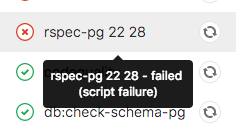
You can also see the reason it failed on the Job detail page.
Troubleshoot a failed job with Root Cause Analysis
You can use GitLab Duo Root Cause Analysis in GitLab Duo Chat to troubleshoot failed CI/CD jobs.
Job name
You can't use these keywords as job names:
imageservicesstagesbefore_scriptafter_scriptvariablescacheinclude-
pages:deployconfigured for adeploystage
Additionally, these names are valid when quoted, but are not recommended as they can make pipeline configuration unclear:
"true":"false":"nil":
Job names must be 255 characters or fewer.
Use unique names for your jobs. If multiple jobs have the same name in a file, only one is added to the pipeline, and it's difficult to predict which one is chosen. If the same job name is used in one or more included files, parameters are merged.
Group jobs in a pipeline
If you have many similar jobs, your pipeline graph becomes long and hard to read.
You can automatically group similar jobs together. If the job names are formatted in a certain way, they are collapsed into a single group in regular pipeline graphs (not the mini graphs).
You can recognize when a pipeline has grouped jobs if you see a number next to a job name instead of the retry or cancel buttons. The number indicates the amount of grouped jobs. Hovering over them shows you if all jobs have passed or any has failed. Select to expand them.
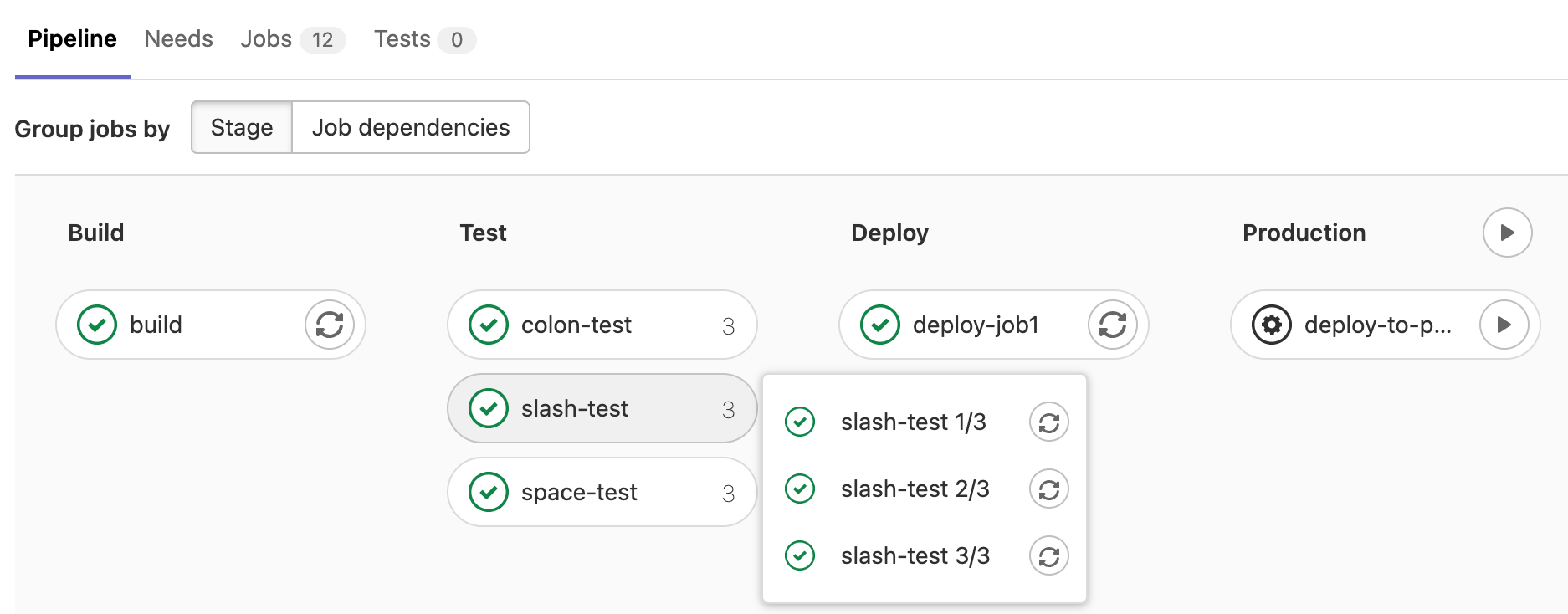
To create a group of jobs, in the .gitlab-ci.yml file,
separate each job name with a number and one of the following:
- A slash (
/), for example,slash-test 1/3,slash-test 2/3,slash-test 3/3. - A colon (
:), for example,colon-test 1:3,colon-test 2:3,colon-test 3:3. - A space, for example
space-test 0 3,space-test 1 3,space-test 2 3.
You can use these symbols interchangeably.
In the example below, these three jobs are in a group named build ruby:
build ruby 1/3:
  stage: build
  script:
    - echo "ruby1"

build ruby 2/3:
  stage: build
  script:
    - echo "ruby2"

build ruby 3/3:
  stage: build
  script:
    - echo "ruby3"
The pipeline graph displays a group named build ruby with three jobs.
The jobs are ordered by comparing the numbers from left to right. You usually want the first number to be the index and the second number to be the total.
This regular expression
evaluates the job names: ([\b\s:]+((\[.*\])|(\d+[\s:\/\\]+\d+))){1,3}\s*\z.
One or more : [...], X Y, X/Y, or X\Y sequences are removed from the end
of job names only. Matching substrings found at the beginning or in the middle of
job names are not removed.
Hide jobs
To temporarily disable a job without deleting it from the configuration file:
-
Comment out the job's configuration:
# hidden_job: # script: # - run test -
Start the job name with a dot (
.) and it is not processed by GitLab CI/CD:.hidden_job: script: - run test
You can use hidden jobs that start with . as templates for reusable configuration with:
- The
extendskeyword. - YAML anchors.
Control the inheritance of default keywords and variables
You can control the inheritance of:
For example:
default:
  image: 'ruby:2.4'
  before_script:
    - echo Hello World

variables:
  DOMAIN: example.com
  WEBHOOK_URL: https://my-webhook.example.com

rubocop:
  inherit:
    default: false
    variables: false
  script: bundle exec rubocop

rspec:
  inherit:
    default: [image]
    variables: [WEBHOOK_URL]
  script: bundle exec rspec

capybara:
  inherit:
    variables: false
  script: bundle exec capybara

karma:
  inherit:
    default: true
    variables: [DOMAIN]
  script: karma
In this example:
-
rubocop:- inherits: Nothing.
-
rspec:- inherits: the default
imageand theWEBHOOK_URLvariable. - does not inherit: the default
before_scriptand theDOMAINvariable.
- inherits: the default
-
capybara:- inherits: the default
before_scriptandimage. - does not inherit: the
DOMAINandWEBHOOK_URLvariables.
- inherits: the default
-
karma:- inherits: the default
imageandbefore_script, and theDOMAINvariable. - does not inherit:
WEBHOOK_URLvariable.
- inherits: the default
Specifying variables when running manual jobs
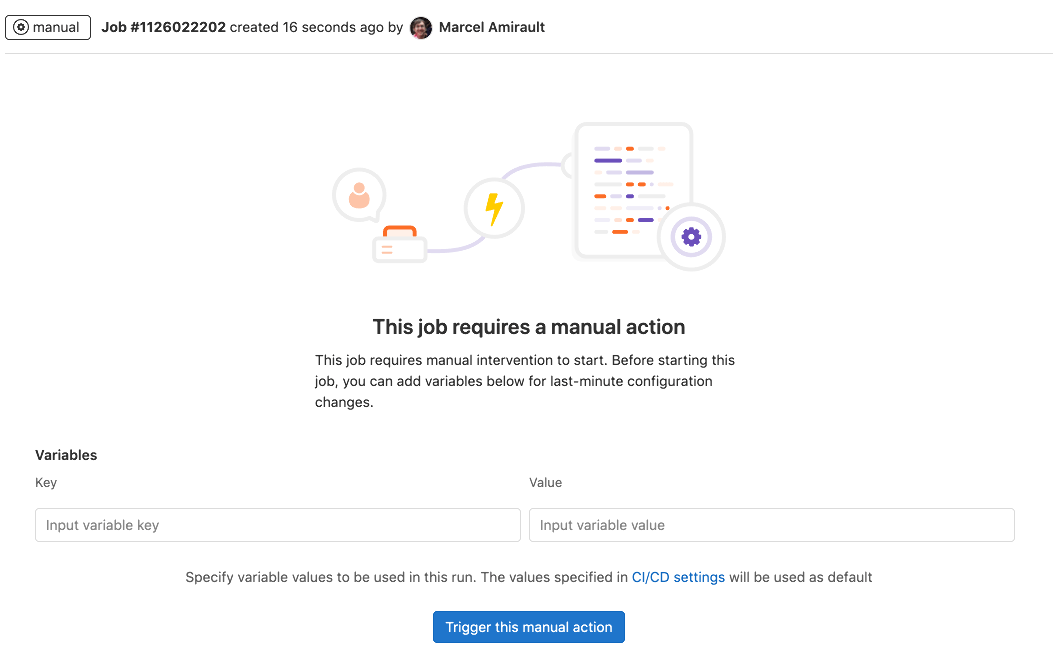
When running manual jobs you can supply additional job specific variables.
You can do this from the job page of the manual job you want to run with additional variables. To access this page, select the name of the manual job in the pipeline view, not Run ({play}).
Define CI/CD variables here when you want to alter the execution of a job that uses CI/CD variables.
If you add a variable that is already defined in the CI/CD settings or .gitlab-ci.yml file,
the variable is overridden with the new value.
Any variables overridden by using this process are expanded
and not masked.
Delay a job
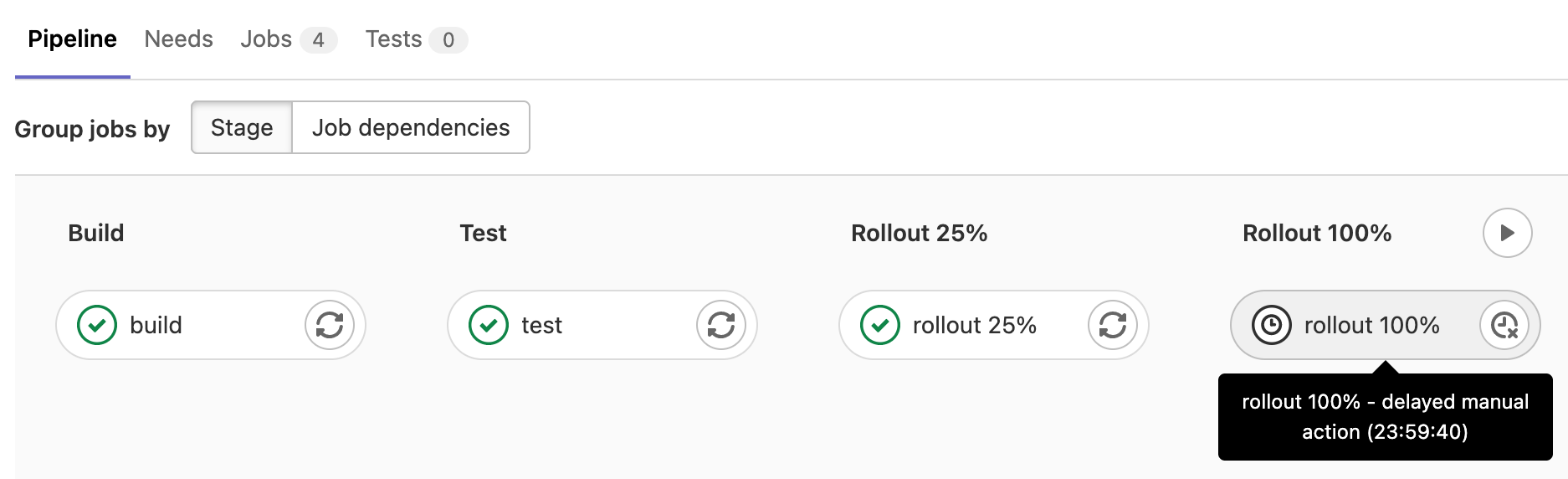
When you do not want to run a job immediately, you can use the when:delayed keyword to
delay a job's execution for a certain period.
This is especially useful for timed incremental rollout where new code is rolled out gradually.
For example, if you start rolling out new code and:
- Users do not experience trouble, GitLab can automatically complete the deployment from 0% to 100%.
- Users experience trouble with the new code, you can stop the timed incremental rollout by canceling the pipeline and rolling back to the last stable version.
Deployment jobs
Deployment jobs are a specific kind of CI job in that they deploy code to
environments. A deployment job is any job that
uses the environment keyword and the start environment action.
Deployment jobs do not need to be in the deploy stage. The following deploy me
job is an example of a deployment job. action: start is the default behavior and
is defined for the sake of the example, but you can omit it:
deploy me:
  script:
    - deploy-to-cats.sh
  environment:
    name: production
    url: https://cats.example.com
    action: start
The behavior of deployment jobs can be controlled with deployment safety settings like preventing outdated deployment jobs and ensuring only one deployment job runs at a time.
Troubleshooting
get_sources job section fails because of an HTTP/2 problem
Sometimes, jobs fail with the following cURL error:
++ git -c 'http.userAgent=gitlab-runner <version>' fetch origin +refs/pipelines/<id>:refs/pipelines/<id> ...
error: RPC failed; curl 16 HTTP/2 send again with decreased length
fatal: ...
You can work around this problem by configuring Git and libcurl to
use HTTP/1.1.
The configuration can be added to:
-
A job's
pre_get_sources_script:job_name: hooks: pre_get_sources_script: - git config --global http.version "HTTP/1.1" -
The runner's
config.tomlwith Git configuration environment variables:[[runners]] ... environment = [ "GIT_CONFIG_COUNT=1", "GIT_CONFIG_KEY_0=http.version", "GIT_CONFIG_VALUE_0=HTTP/1.1" ]
Job using resource_group gets stuck
DETAILS: Tier: Free, Premium, Ultimate Offering: GitLab Self-Managed, GitLab Dedicated
If a job using resource_group gets stuck, a
GitLab administrator can try run the following commands from the rails console:
# find resource group by name
resource_group = Project.find_by_full_path('...').resource_groups.find_by(key: 'the-group-name')
busy_resources = resource_group.resources.where('build_id IS NOT NULL')

# identify which builds are occupying the resource
# (I think it should be 1 as of today)
busy_resources.pluck(:build_id)

# it's good to check why this build is holding the resource.
# Is it stuck? Has it been forcefully dropped by the system?
# free up busy resources
busy_resources.update_all(build_id: nil)